The purpose of this tutorial is to enable a competent user to install Microsoft SQL Server 2022 and to attach an existing RedAnt user's database to the SQL server. It will not however allow the user to setup a new RedAnt Installation as some of the files required to do this are protected by intellectual property and so will require a Stone Technology employee to commission the final stages.
SQL Server 2022 can be installed on Windows 10 or above and Server 2016 or above.
SQL Server can be downloaded from our website at https://redantsoftware.co.uk under the Support > Software menu. The user name is redant@redantsoftware.co.uk and the password is scoobydoo all in lower case. The download link will navigate you to Microsoft's Website.
Save the downloaded file in your RedAnt\Install\SQL2022 folder. If this directory does not exist then create it.
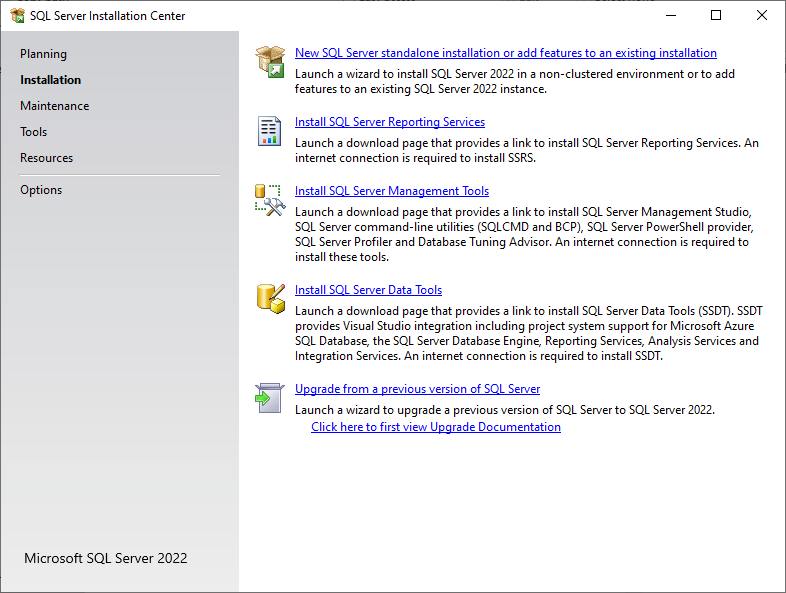
Execute the program and select New SQL Server standalone installation
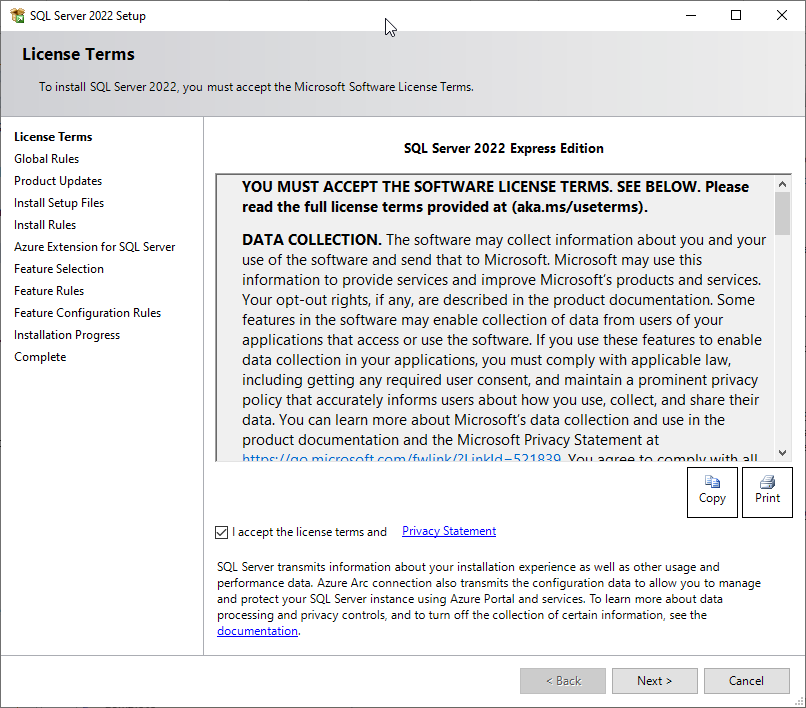
Accept the license terms and select Next
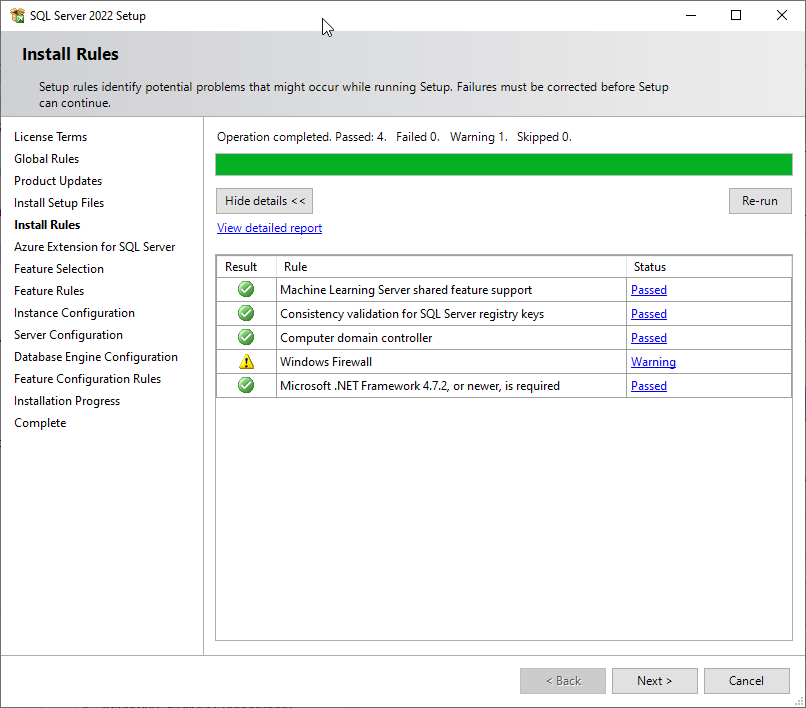
If there are any failures on the following screen you will need to rectify them before you can continue. Ignore the Windows Firewall Warning
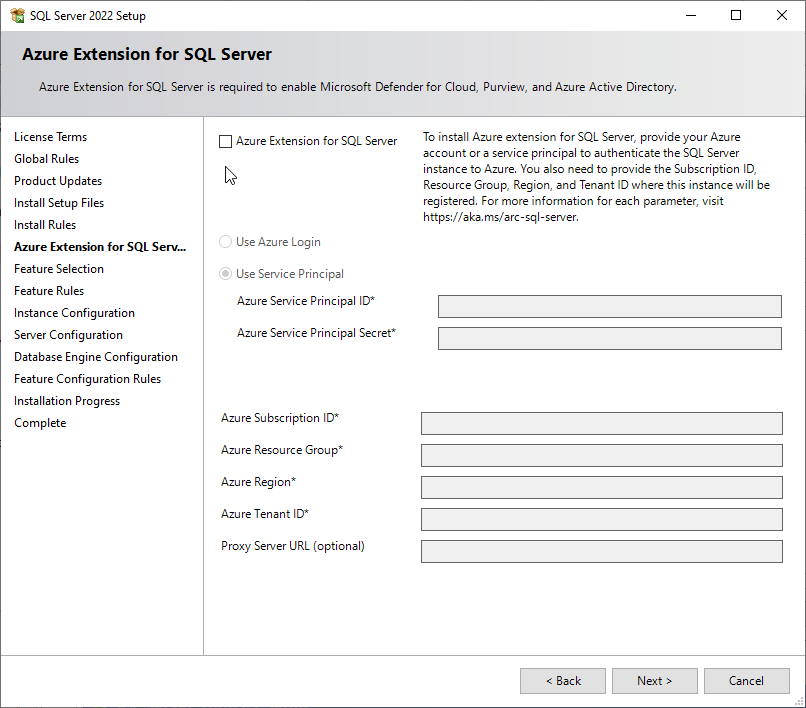
Remove the 'Check' against Azure Extension for SQL Server and select Next
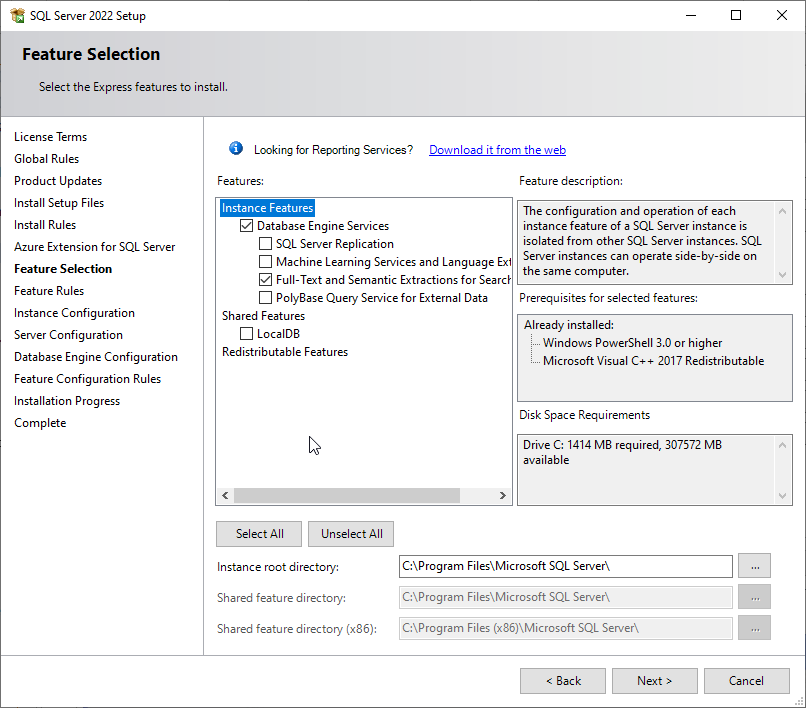
Select Only the options shown below and then select Next
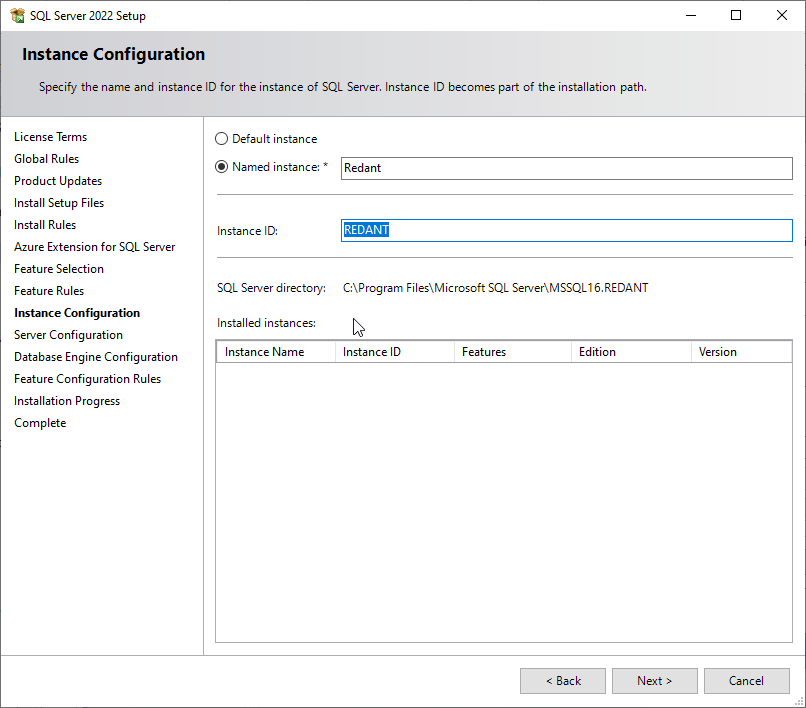
Select Named Instance and call it RedAnt. Select Next
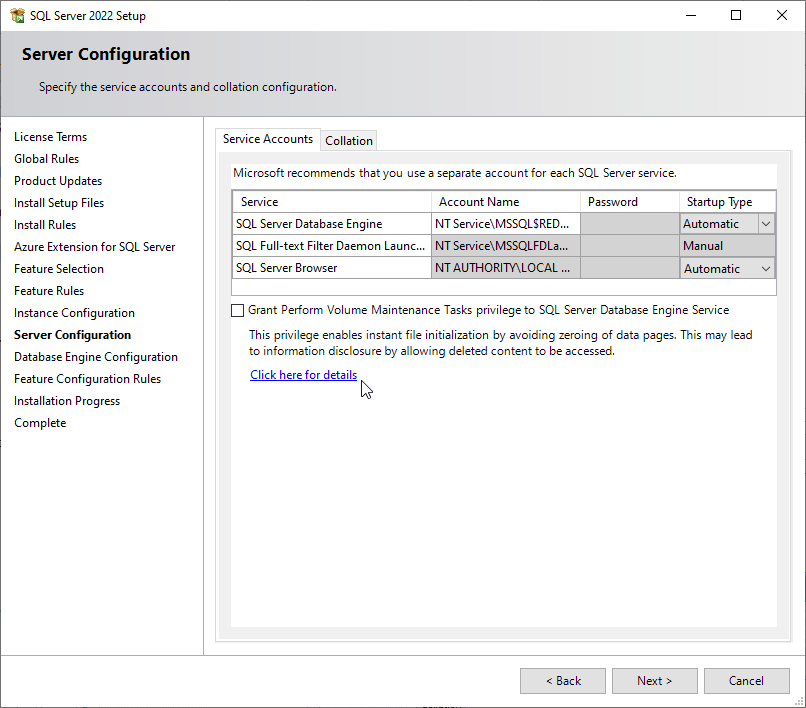
Under the Server Accounts tab change the settings as below.
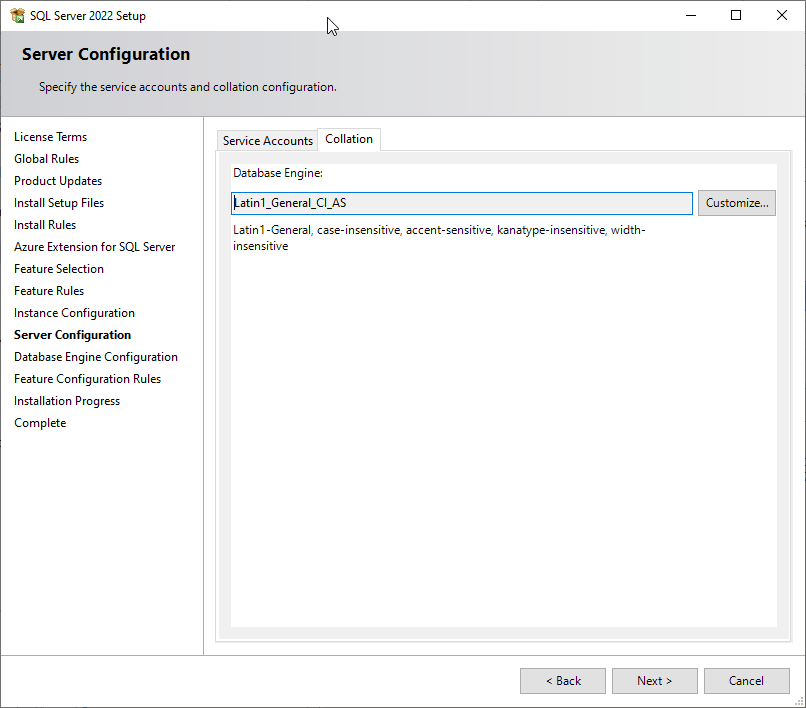
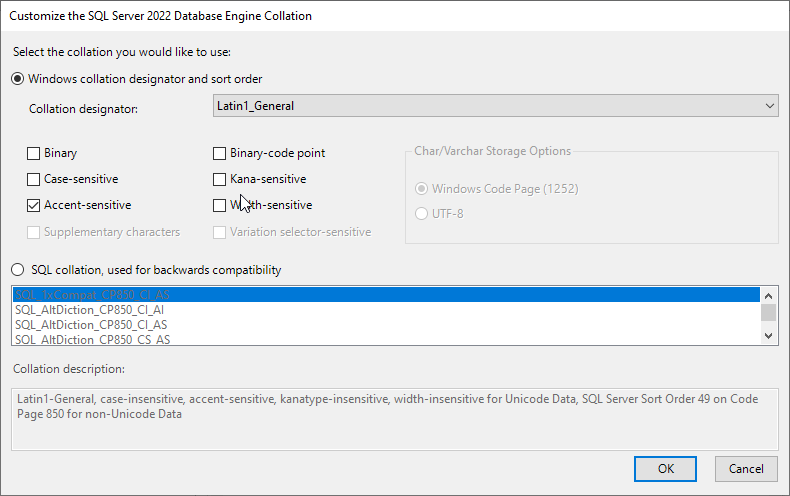
Select the Collation Tab and change the settings to exactly what is show below. This is very important as RedAnt will not function correctly unless these are correct. Use the Customize button if necessary.
Select the Service Accounts tab and then select Next.
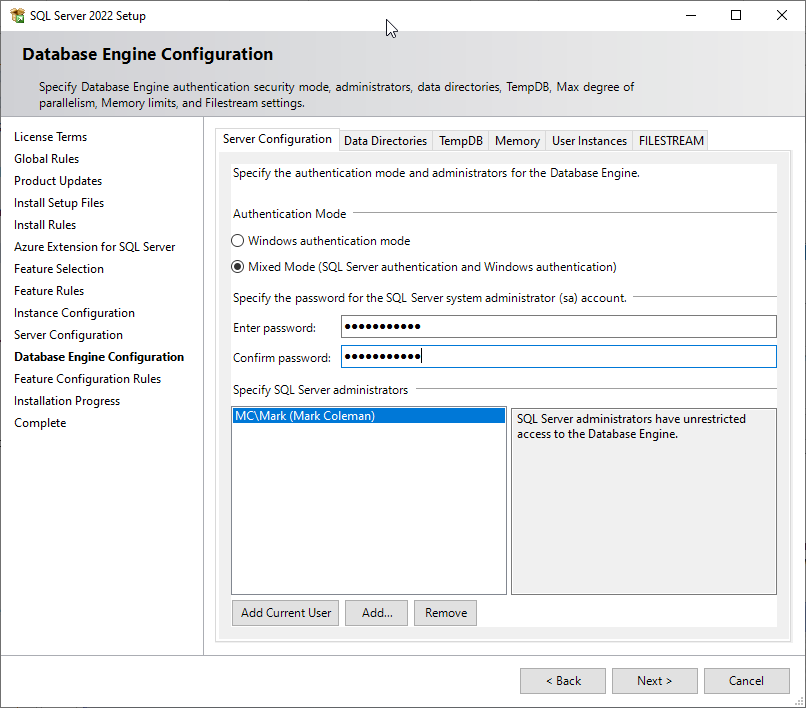
Select the Mixed Mode option and enter the password R3dant_2012
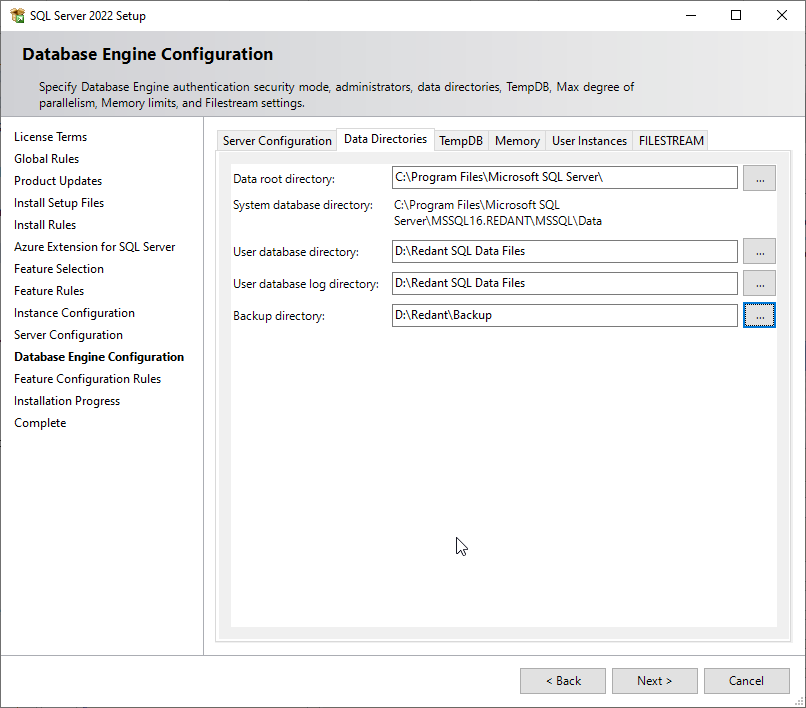
Select the 'Data Directories' tab. Change the 'User Database Directory' to the location where you want to store your RedAnt data files. This should be located on a separate hard drive from the operating system and where you are installing the SQL server if possible. The log directory will automatically change to the database directory when selected. Change the Backup Directory to where you want the RedAnt backups stored. The recommended directories are shown below.
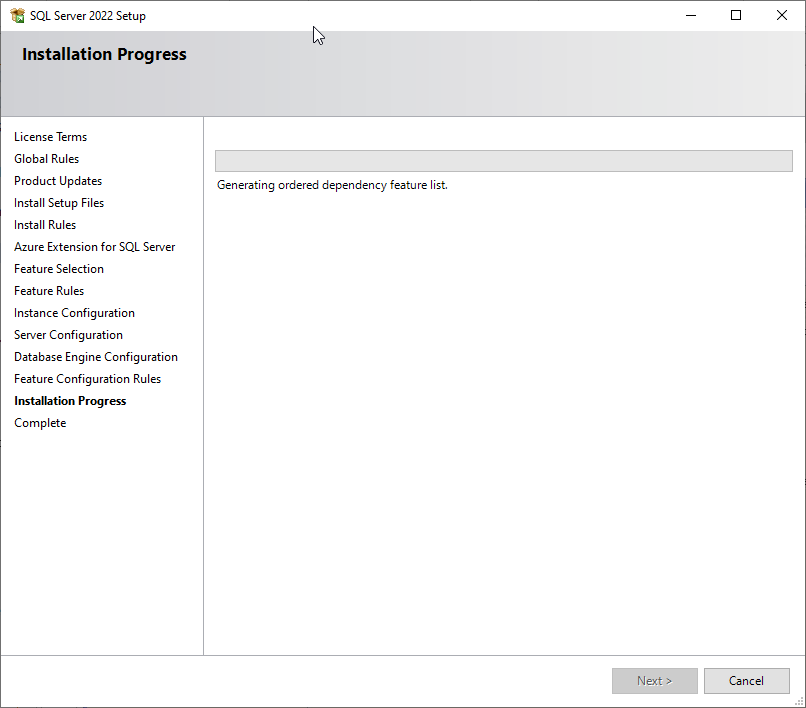
Select Next and the installation will begin showing a progress screen as below.
If the installation was successful then each of the installed options will show as 'Success'. If any errors occur then the SQL server will not function correctly and you will need to seek further technical advice on how to correct these.
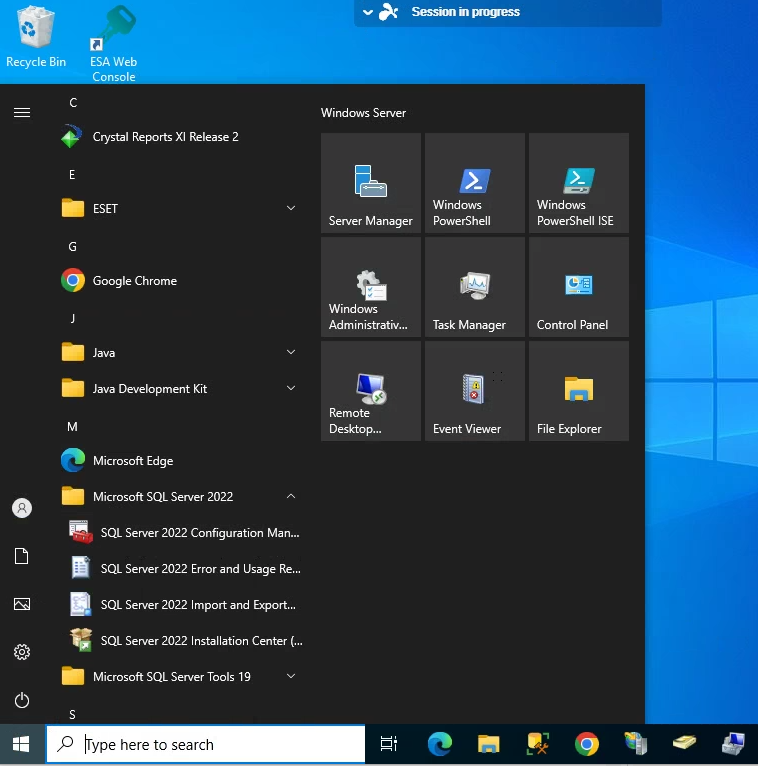
Select the Windows Start button and locate 'SQL Server Configuration Manager' under the Microsoft SQL Server 2022 folder as shown below
 From the desktop select
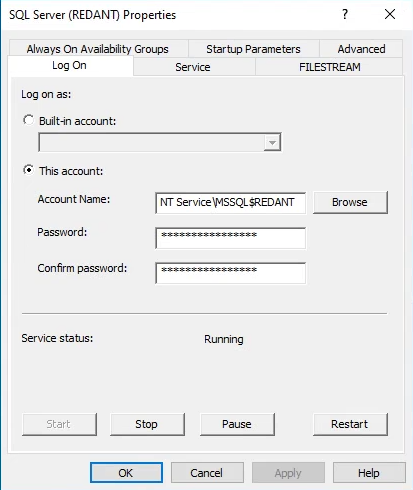
Select 'SQL Server Services' in the left windows and then right click 'SQL Server (Redant)' in the right window followed by 'Properties'
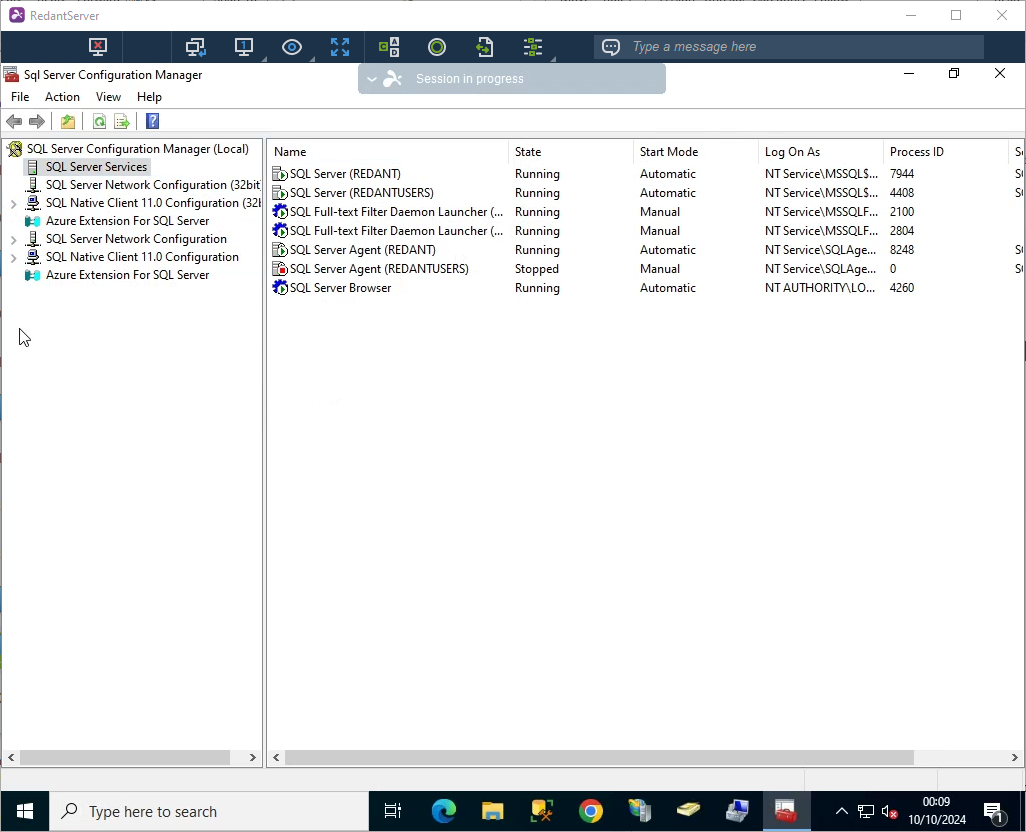
Select Startup Parameters
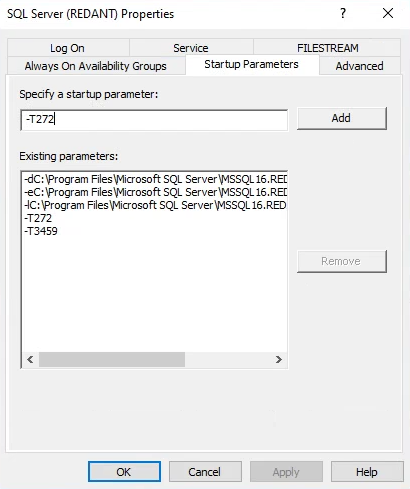
Enter -T272 in the 'Specify a startup parameter' field followed by the Add button. Add -T3459 in the same way. You should now have 2 new entries in the 'Existing parameters' list as below. Click OK to close the window
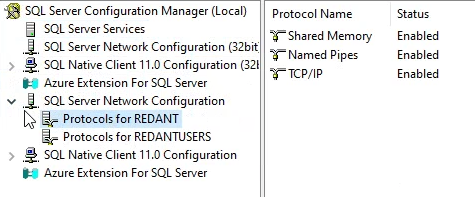
In the left window expand 'SQL Server Network Configuration' and select 'Protocols for Redant' In the right hand window make sure 'Named Pipes' and 'TCP/IP' are both enabled. Right click and select 'Enable' if required
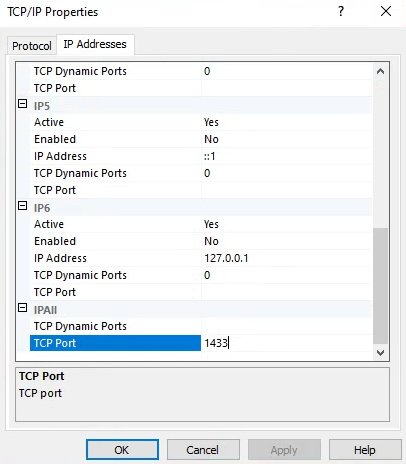
Right Click on TCP/IP in the right window and select 'Properties'. Select the 'IP Address' tab and scroll down to the bottom. Remove the '0' from the 'TCP Dynamic Ports' entery and add '1433' in the 'TCP Port' entry as shown below. Select Ok to close the window
From our Website https://redantsoftware.co.uk under Support / Software install the latest version of Microsoft SQL Server Management Studio. Load the SQL Management software
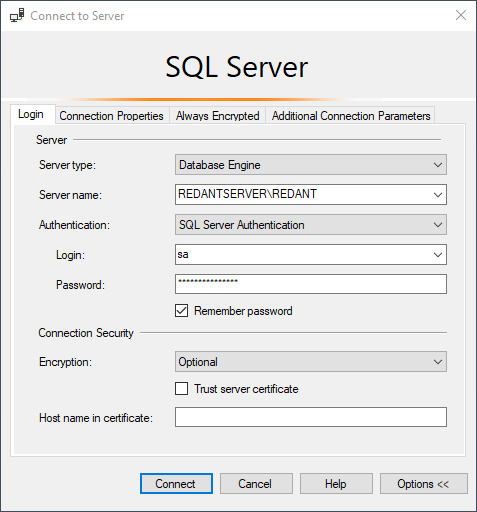
At the login screen set the server type to Database Engine and then using the dropdown under 'Server Name' locate your servername\RedAnt instance. Most likely you will find it under Local Servers.
Set the Authentication as 'SQL Server Authentication, Login name as 'sa' and the password R3dant_2012
Set 'Encryption' as 'Optional'
Select Connect to sign in to the database manager.
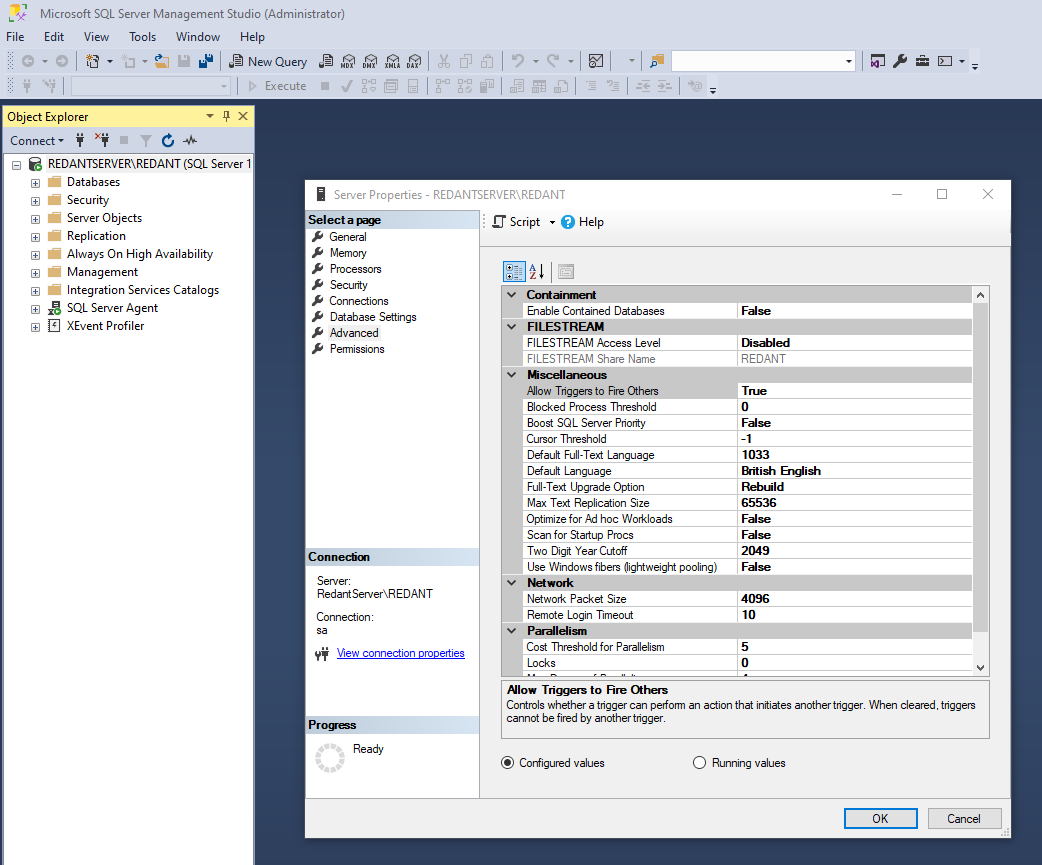
On a successful connection to the database server the following window will appear. Right click on the YourServerName\RedAnt in the left window and then select properties.
Under the Advanced setting change the Default Language to 'British English' and then select OK to save
Right click 'yourservername\Redant' in the left windows and select 'Restart'
Answer 'yes' to both prompts.
In the left window, expand Security > Logins, right click the 'sa' login name and select properties. Under the General section remove the check from 'Enforce Password Policy'
Change the Default Language to 'British English' and then select OK to save
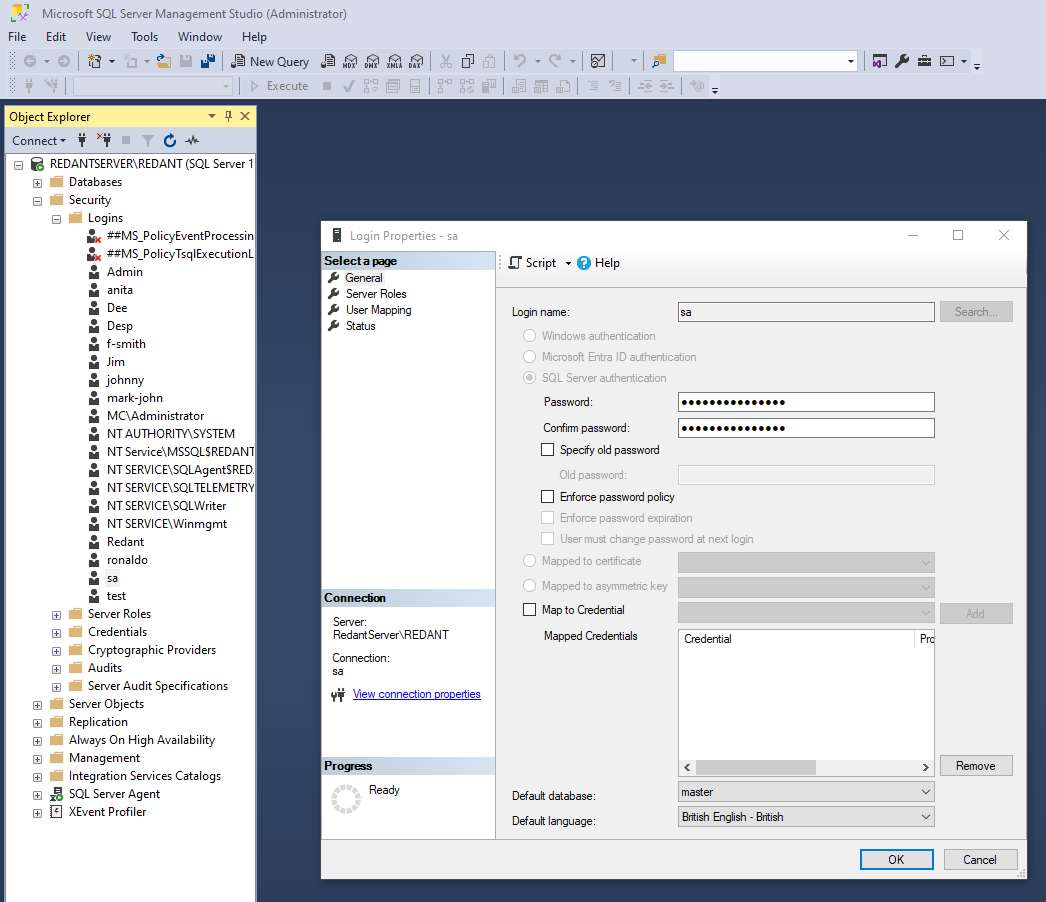
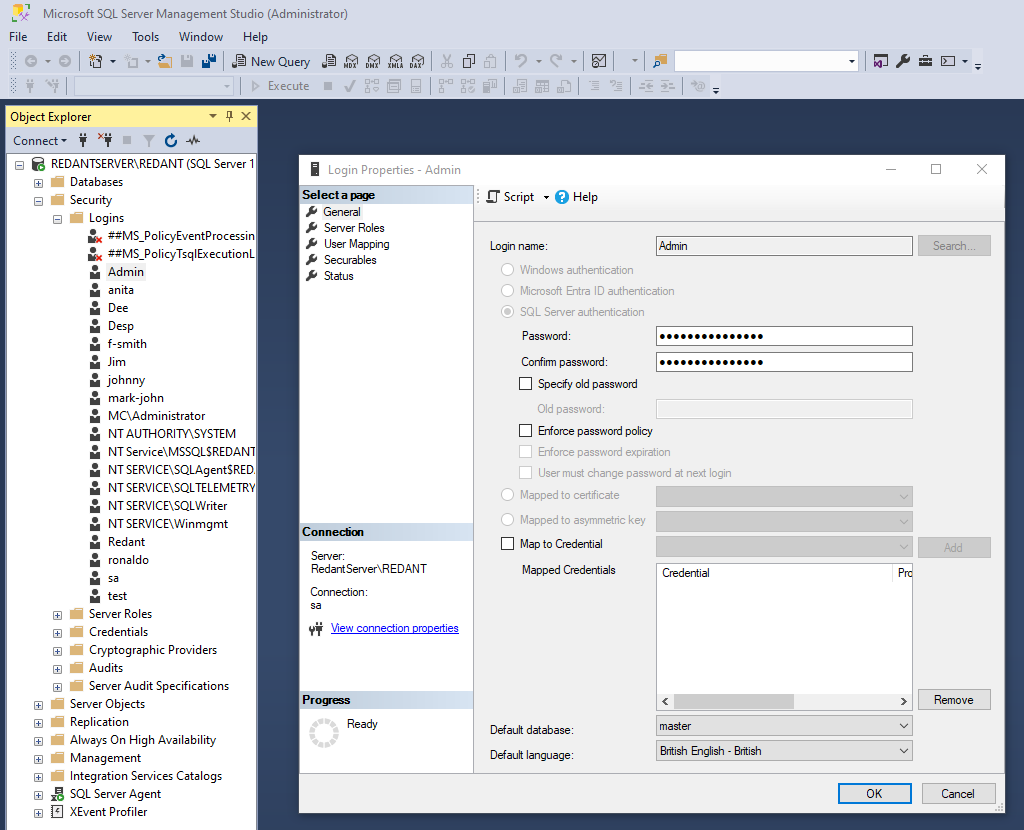
We now need to setup the 'RedAnt' and 'Admin' users. In the left window expand Security > Logins. Right click on Logins and then select New. In the Login Name enter 'Admin'. Enter '1234' for the password and remove the check from 'Enforce Password Policy'. Make sure the default language is set to 'British English'. Under the Server Roles option make sure 'SYSADMIN' is selected. Press OK to save.
Repeat the above steps but this time the user name is Redant and the password is R3dant_2012
The SQL Server is now ready and working. If you have an existing RedAnt database you can now attach this to the server.
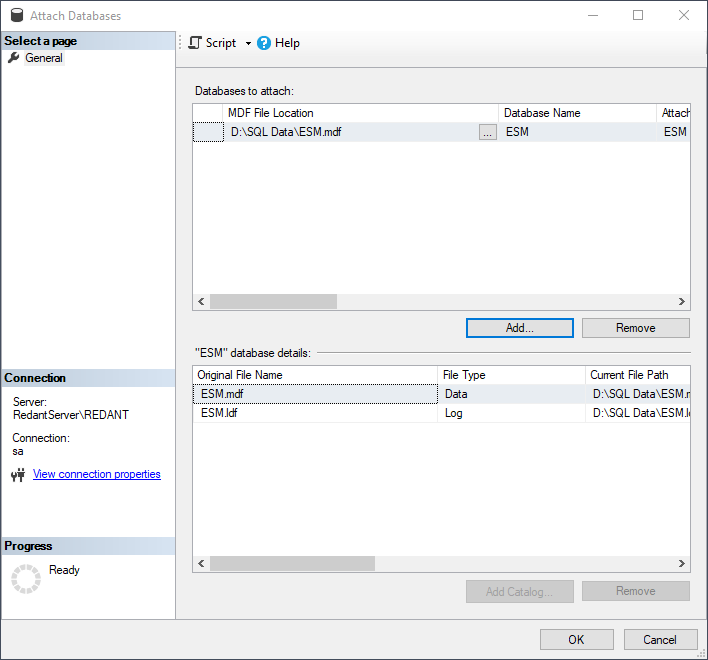
Right click Databases in the left window and then select Attach. The following window will appear. Select the Add button and then locate the directory where your RedAnt data files are located. The file you require will be easily identified as it will invariably be your company name and end with an MDF extension. Select the file and then press OK. The window should look something similar to the one below.
Select OK and the database should now appear under the Databases list in the left hand window.
You have now successfully attached you database to the SQL Server. At this stage it would be wise to reboot your server to apply previous changes we have made.
After a reboot then you can follow the instructions for installing a workstation on your server so you may test the newly installed RedAnt System.
If this is a new installation on a new operating system such as Windows 10/11 or Windows Server 2022 then you will require certain firewall ports opening in the firewall before users can use RedAnt. There is a batch file located in the support section on our website which when run will open up the correct ports.